
Protection
Protection sets how hard the check is and how long a visitor's pass lasts. The check is the proof-of-work puzzle the visitor's browser solves. The pass is the signed cookie the browser gets afterward.
In the web UI, find it under Configure > Protection.
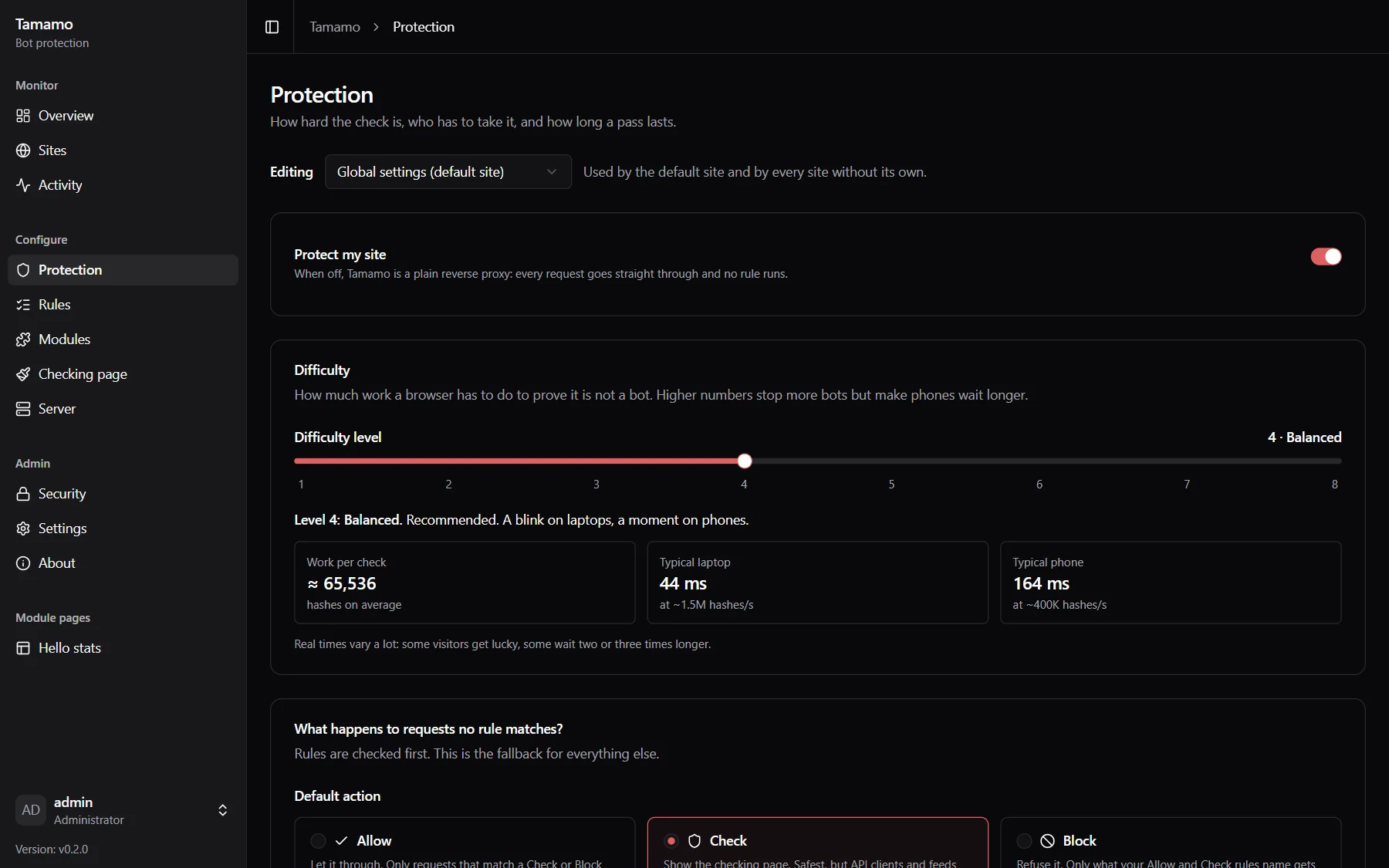
These settings live under protection: in tamamo.yaml. A site can override any of them.
| Key | Web UI | Default | What it does |
|---|---|---|---|
enabled | Protect my site | true | false makes Tamamo a plain reverse proxy. Nothing is checked at all: no bypass header, rate limit, webhook, module or rule runs. |
difficulty | Difficulty level | 4 | Work per check, from 1 to 8. The environment variable TAMAMO_DIFFICULTY sets it only when Tamamo creates the file. See difficulty. |
default_action | Default action | challenge | What happens when no check, module or rule decides: allow, challenge, or block. Any other value becomes challenge. |
pass_hours | Visitors stay verified for | 168 | How long a pass lasts, from 1 to 8760 hours. |
challenge_minutes | Visitors must finish the check within | 30 | How long a checking page stays valid, from 1 to 120 minutes. |
bind_ip | Tie the pass to the visitor’s network | true | The pass works only in the /24 (the first three numbers of an IPv4 address) or /64 (IPv6) network it was earned on. Mobile visitors may be asked again when their address changes. Turn this off when your visitors’ addresses change often, for example on mobile networks. |
bind_user_agent | Tie the pass to the browser | true | The pass works only in the browser that earned it. A browser update can trigger a new check. |
cookie_name | Cookie name | tamamo-pass | Letters, digits, -, and _, up to 64 characters. Changing it signs every visitor out. |
cookie_domain | Cookie domain | empty | Empty means the exact host name. Set example.com to share one pass across its subdomains. |
max_failures_per_minute | Max failed attempts per minute | 30 | Failed checks allowed per IP address (per /64 for IPv6) in one minute. Over the limit, the address is refused until the minute ends. 0 turns the limit off. |
unprotected_paths | Unprotected pages | empty | Pages that are never checked at all. See unprotected pages. |
verified_bots | Verified bots | off | Confirms that a visitor calling itself a search engine is one. See verified bots. |
accept_passes_from | Accept passes from these sites | empty | For an API on another domain than its website. See An API on another domain. |
bypass_headers | Bypass headers | empty | Secret headers that skip every check. See bypass headers. |
rate_limit | Rate limit | off | Requests one address may make in a time window. See rate limit. |
webhooks | Webhooks | empty | Your own HTTP services that decide about requests. See Webhooks. |
Difficulty
Each level asks for about 16 times the work of the level below. Keep level 4 unless bots keep getting through. Then raise it one level at a time and watch the Activity screen.
| Level | Name | Average hashes | Phone | Laptop |
|---|---|---|---|---|
| 1 | Barely there | 16 | under 1 ms | under 1 ms |
| 2 | Very light | 256 | under 1 ms | under 1 ms |
| 3 | Light | 4,096 | 10 ms | 3 ms |
| 4 | Balanced | 65,536 | 164 ms | 44 ms |
| 5 | Firm | 1,048,576 | 2.6 s | 0.7 s |
| 6 | Strong | 16,777,216 | 42 s | 11 s |
| 7 | Very strong | 268,435,456 | 11 min | 3 min |
| 8 | Extreme | 4,294,967,296 | about 3 hours | about 48 min |
The times assume 400,000 hashes per second on a phone and 1,500,000 on a laptop, the rates the web UI uses. Some visitors wait two or three times longer than the estimate.
Level 6 and up make phone visitors wait tens of seconds or more, so use them only during short attacks. Raising the level also invalidates passes earned at a lower level.
default_action
The default action runs only when no check, module or rule decides. challenge is the safe choice. API clients and feed readers that cannot run JavaScript fail the check, so allow them with a rule. allow lets unmatched requests through, and block refuses them. The default rules end with a catch-all, so this setting rarely matters. See Rules.
Checks before the rules
These are built into Tamamo and run on every request before any rule, in this order. All of them are optional and off until you set them up.
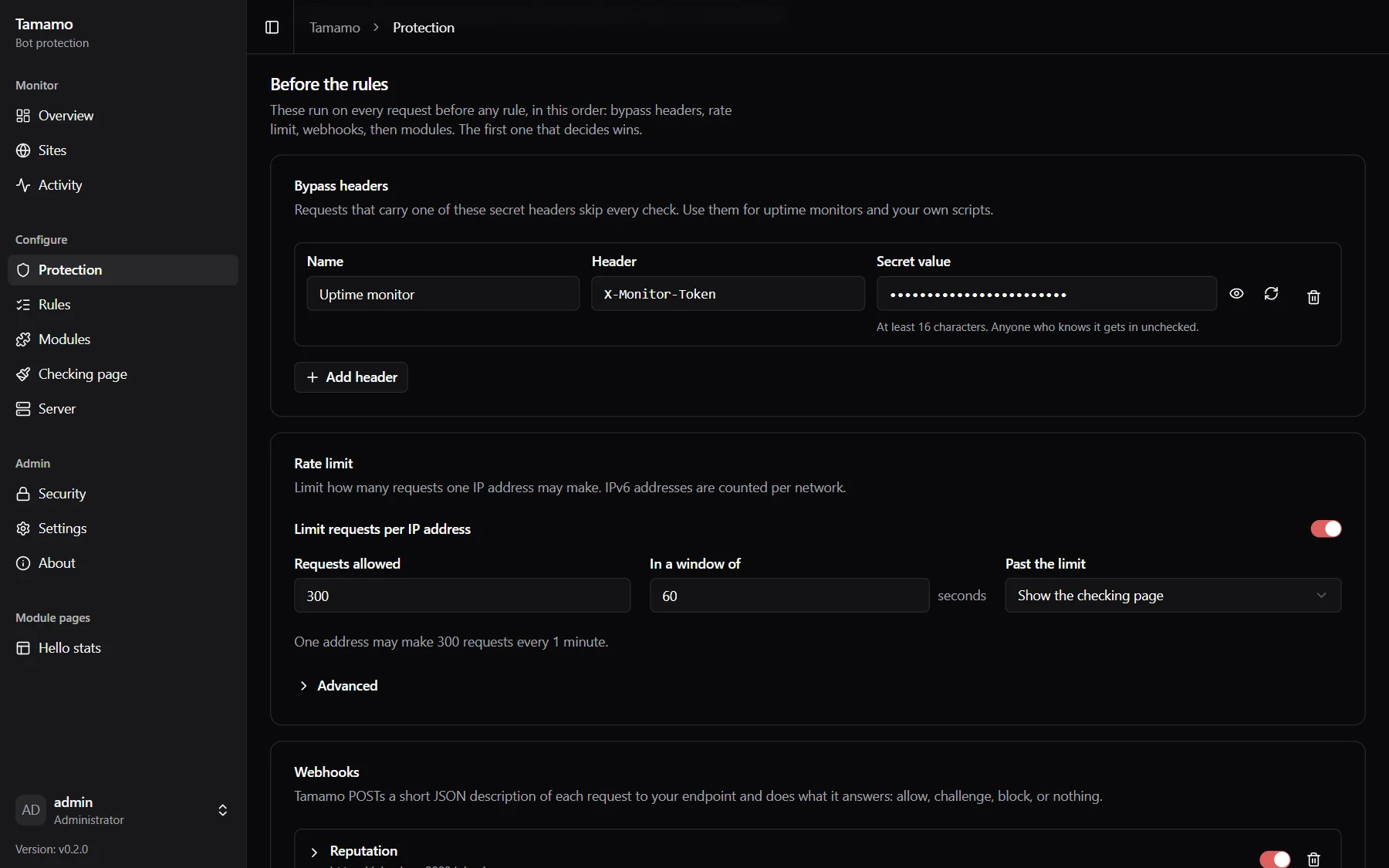
After them come the modules, then the rules. The first one that decides wins and the rest are skipped. In the web UI, they are the cards under Before the rules on the Protection screen.
Unprotected pages
A list of pages Tamamo lets through without looking at anything else. No check, rate limit, webhook, module or rule runs for them. Use it for files that everything must be able to fetch, such as robots.txt.
Put unprotected_paths: under the protection: key you already have in data/tamamo.yaml:
yaml
protection:
  unprotected_paths:
    - /robots.txt
    - /.well-known/*
    - /favicon.ico
The patterns work like the paths of a rule: * stands for any text, and re: starts a regular expression. In the web UI, the list is in the Never checked card on the Protection screen, one pattern per line.
How this differs from an allow rule: a rule runs after the rate limit, the webhooks and the modules, so any of those can still stop the request. An unprotected page skips them all.
Don't list pages that cost your server work, such as search. A bot can fetch an unprotected page as often as it likes.
Bypass headers
A request that carries one of these secret headers is allowed at once: it skips the rate limit, webhooks, modules, rules and the proof of work. Use them for uptime monitors and your own scripts, which can't solve the check.
| Key | Web UI | What it does |
|---|---|---|
name | Name | Shown in Activity as bypass:<name>. Defaults to the header name. |
header | Header | The header name, such as X-Monitor-Token. The name ignores case. |
value | Secret value | What the header must carry, at least 16 characters. The Generate button in the web UI makes a random one. |
Put bypass_headers: under the protection: key you already have in data/tamamo.yaml. Do not add a second protection: block.
yaml
protection:
  bypass_headers:
    - name: Uptime monitor
      header: X-Monitor-Token
      value: "replace-with-a-long-random-value"
bash
curl -H "X-Monitor-Token: replace-with-a-long-random-value" https://example.com/The value is stored in plain text, so keep tamamo.yaml private and send the header only over HTTPS. Anyone who learns it gets in unchecked. Your app receives the header too.
Verified bots
The default rules let search engines in by their user agent, and anyone can send a user agent that says "Googlebot". With this check on, Tamamo asks DNS whether such a visitor really comes from the search engine:
- It looks up the name of the visitor's IP address. For a real Googlebot, the name ends in
googlebot.comorgoogle.com. - It looks up that name and checks that it leads back to the same IP address.
A visitor that passes goes on to the rules as usual. A visitor that only claims the name gets the action: block (the default) or challenge.
yaml
protection:
  verified_bots:
    enabled: true
    action: block
In the web UI, it is the Verified bots card on the Protection screen.
| Crawler | Recognized by | Name must end in |
|---|---|---|
| Googlebot | Googlebot, AdsBot-Google, Mediapartners-Google, Google-InspectionTool, GoogleOther, Storebot-Google | googlebot.com, google.com |
| Bingbot | bingbot, adidxbot, msnbot | search.msn.com |
| Yandex | yandex.com/bots | yandex.ru, yandex.net, yandex.com |
| Baiduspider | Baiduspider | baidu.com, baidu.jp |
| Applebot | Applebot | applebot.apple.com |
| PetalBot | PetalBot | petalsearch.com |
| MojeekBot | MojeekBot | mojeek.com |
Things to know:
- Other visitors are never looked up. Only a user agent from the table causes a DNS question.
- The answer is remembered per IP address: a day for a real crawler, an hour for a fake one. Only the first request from a new address waits for DNS, at most 2 seconds.
- If DNS doesn't answer, the visitor gets the checking page that time, and nothing is remembered.
- Tamamo must see the visitor's real IP address. Behind a proxy, set
ip_sourceandtrusted_proxiesfirst, or every crawler looks fake. - Crawlers that are not in the table, such as DuckDuckBot, are not affected. They are still let in by user agent.
Rate limit
Limits how many requests one address can make in a time window. Past the limit, action applies. The address is the one Tamamo sees, so set the IP source first.
| Key | Web UI | Default | What it does |
|---|---|---|---|
enabled | Limit requests per IP address | false | Turns the limit on. |
requests | Requests allowed | 120 | Requests allowed in one window, 1 to 1000000. |
window_seconds | In a window of | 60 | Length of the window in seconds, 1 to 86400. |
action | Past the limit | block | block refuses the request. challenge shows the checking page; a visitor who already has a pass is let through. |
ipv6_prefix | IPv6 network size | 64 | IPv6 visitors are counted per network of this size, 48 to 128. IPv4 addresses are counted one by one. |
max_ips | Addresses tracked | 100000 | Addresses counted at once, 100 to 10000000. When the table is full, Tamamo forgets some counts. |
Put rate_limit: under the protection: key you already have in data/tamamo.yaml. Do not add a second protection: block.
yaml
protection:
  rate_limit:
    enabled: true
    requests: 120
    window_seconds: 60
    action: challenge
Start high, for example 300 requests per 60 seconds, and lower the limit after watching Activity.
Every request counts, including images and scripts, so a page with many files uses up the limit quickly. Requests with a bypass header are not counted. The window slides: it is not reset on the minute. Counts are kept in memory and start from zero after a restart.
This is separate from max_failures_per_minute, which only counts failed checks.
Per-site overrides
A site's protection section lists only what differs from the global settings. See Sites.
The rate limit is merged setting by setting: a site can change just requests. The lists are not merged: a site that sets bypass_headers or webhooks replaces the global list for itself. A site with its own protection settings also counts its rate limit separately from other sites.
A pass is also tied to its site. A visitor who passed on one site is checked again on another, even when cookie_domain covers both.