
Web UI, login and statistics
The web UI edits your settings through the admin API. The admin API is a separate listener on port 8081 that the web UI talks to. It is off until you turn it on. This page covers turning it on, the login, the signing secret, statistics, and the interface language.
Web UI access
Turn on the admin API with the TAMAMO_ENABLE_API environment variable on the tamamo service. It is not a settings key:
yaml
services:
  tamamo:
    environment:
TAMAMO_ENABLE_API: "true"true, 1, yes, and on all turn the API on. Without the variable, no admin listener starts, and the admin section does nothing. An old enabled: line under admin: is ignored.
The admin API listens on :8081 inside the backend container. Don't publish that port. Anyone who can reach it and sign in can change your settings. The example compose files keep it on the internal network.
| Key | Web UI | Default | What it does |
|---|---|---|---|
admin.listen | Admin UI listens on | :8081 | The address of the admin API. Needs a restart. Locked by TAMAMO_ADMIN_LISTEN. |
admin.domains | Admin domains | empty | Answers only requests whose host name is in the list. Empty allows any host name. *.example.com matches subdomains but not example.com. Locked by TAMAMO_ADMIN_DOMAIN, which takes a comma-separated list. |
admin.username | Admin login | empty | The sign-in name, 3 to 64 characters. Locked by TAMAMO_ADMIN_USERNAME. |
admin.session_hours | Stay signed in for | 168 | How long a sign-in lasts, from 1 to 2160 hours. Applies to new sign-ins. |
admin.password_hash | Not shown | Written by Tamamo | A hash of the password. Change the password in the web UI, not in the file. |
WARNING
Set admin.domains only to the host name you use to open the web UI. If the list leaves out that name, the admin API stops answering it. The Server screen shows This would lock you out before you save. To recover, fix admin.domains in tamamo.yaml or set TAMAMO_ADMIN_DOMAIN, then restart Tamamo.
Sign-in lockout behind the web UI container
After 5 wrong passwords from one address, sign-in from that address is refused for a while, longer each time. The web UI container connects to Tamamo for every admin, so without help Tamamo sees one address for everyone, and one person guessing passwords locks everybody out.
admin.trusted_proxies fixes that. It lists the proxies in front of the admin API. For a connection from one of them, Tamamo counts the address the proxy reports in X-Forwarded-For instead. The compose file with the web UI sets it for you:
yaml
services:
  tamamo:
    environment:
      TAMAMO_ADMIN_TRUSTED_PROXIES: private
An entry is an IP address, a CIDR range, or the word private, which stands for all private and loopback addresses. In tamamo.yaml it is a list under admin:. In the web UI it is Proxies in front of the admin API on Configure > Server.
private is right when only your own containers and proxies can reach the admin port. If other machines on a private network can reach it directly, list the exact addresses of your proxies instead. A machine in the list can claim any address and so avoid the lockout.
Login and security
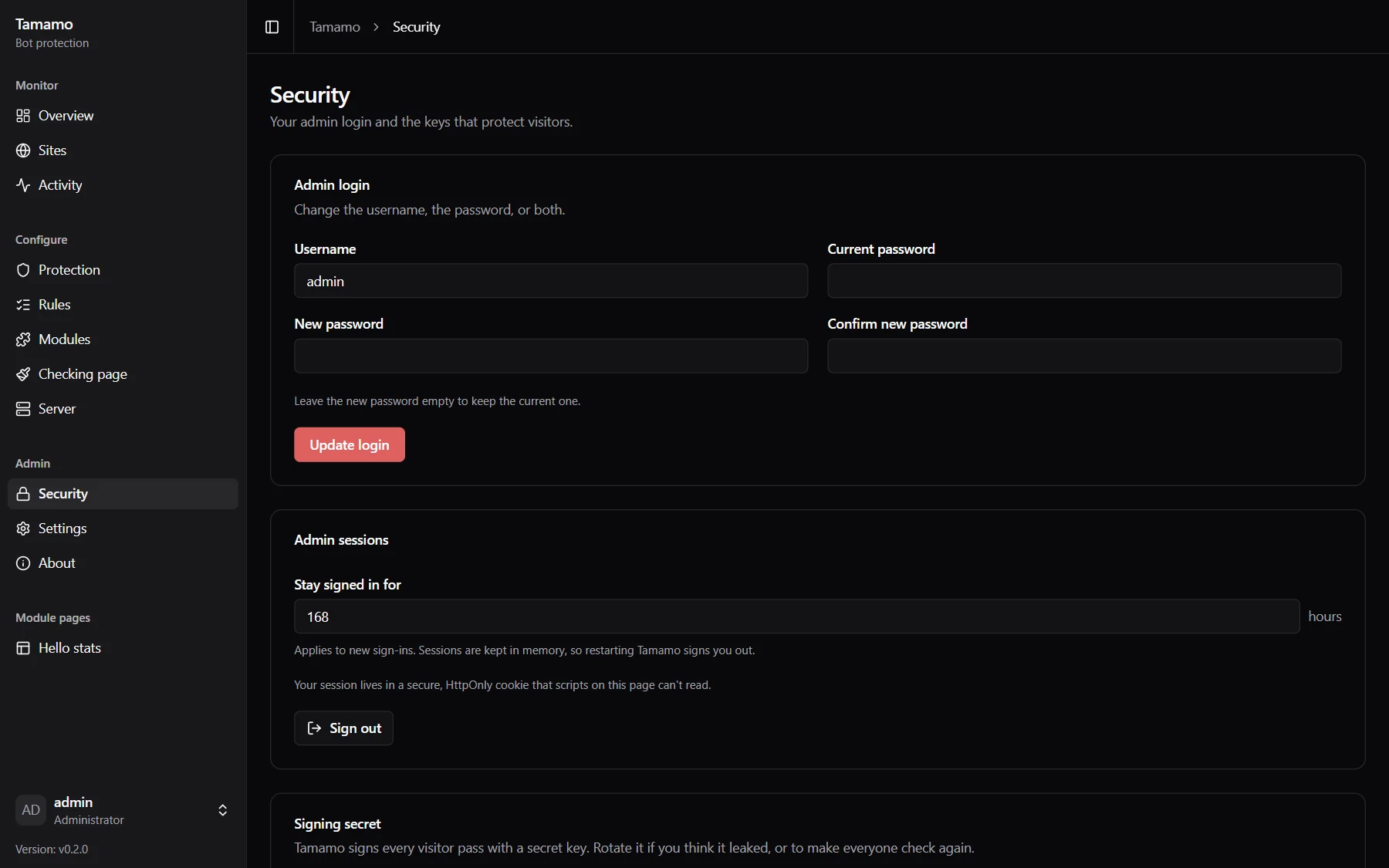
The Security screen is under Admin > Security.
Create the login
The first person to open the web UI creates the login. To create it yourself instead, set TAMAMO_ADMIN_USERNAME and TAMAMO_ADMIN_PASSWORD. Or run this command and type the password on the first line:
bash
docker compose exec -i tamamo tamamo -set-login adminThe command asks new admin password: and then prints admin login saved for admin.
The username is 3 to 64 characters and can't start or end with a space. The password is at least 8 characters and at most 1024 bytes.
Change the username or password
On the Security screen, change the username, the password, or both. Enter your current password first. The new password must be at least 8 characters and at most 1024 bytes. Changing the login signs out every other session. If TAMAMO_ADMIN_USERNAME sets the login, the card is locked.
Sessions are kept in memory, so restarting Tamamo signs everyone out.
Rotate the signing secret
Tamamo signs every visitor pass with a secret key. Rotate signing secret on the Security screen makes every existing pass invalid. Visitors have to pass the check again. A checking page that is open at that moment fails once and retries. Your admin session is not affected.
Rotate the secret if you think it leaked, or to make everyone check again after a bot wave. tamamo -rotate-secret does the same from a shell. Restart Tamamo afterwards. Deleting secret.key from the data folder has the same effect.
Turn the web UI off
Remove TAMAMO_ENABLE_API, then run docker compose up -d to restart Tamamo. It keeps protecting your site with the saved settings. Nobody can change them in the browser until you set the variable again or edit tamamo.yaml.
Statistics
Statistics count checks, solves, blocks, and the rules that matched. They are off by default. Turn them on under Configure > Server > Collect statistics, or set the key in tamamo.yaml.
| Key | Web UI | Default | What it does |
|---|---|---|---|
stats.enabled | Collect statistics | false | Turns counting and the recent events list on. Counting continues without the web UI, but only the web UI shows the numbers. |
stats.store_ips | Record IP addresses | true | false keeps the counts and never stores visitor IP addresses, not even in the recent events. |
stats.recent_events | Recent events to keep | 200 | How many recent checks, solves, failures, and blocks the Activity screen keeps, from 10 to 2000. |
Statistics are saved in tamamo.db, a SQLite file in the data folder. Nothing is sent anywhere. Counters are saved every 30 seconds while they change, so a crash can lose up to 30 seconds of counts. Hourly totals are kept for eight days, which covers the 24-hour and 7-day charts. To keep statistics when you move Tamamo, see Back up and upgrade.
Overview
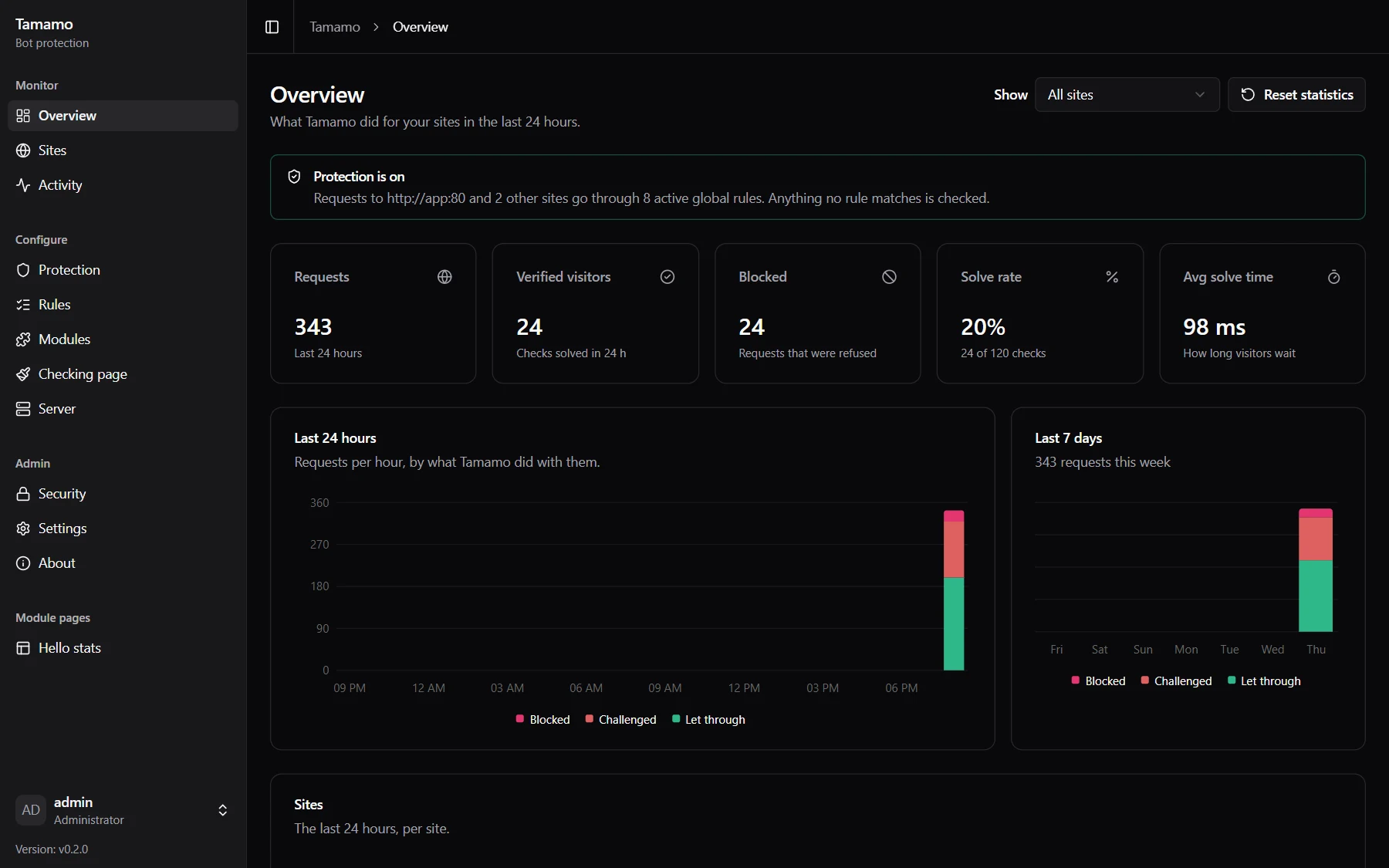
Overview shows the last 24 hours. The banner says whether protection is on and names your upstream.
- Five cards: Requests, Verified visitors (solved checks, not people), Blocked, Solve rate, and Avg solve time.
- Charts split traffic into Let through, Challenged, and Blocked, per hour for 24 hours and per day for 7 days.
- Lists of up to eight rows: Top rules, Top challenged & blocked agents, and Top paths.
- Show limits the numbers to one site. Reset statistics clears all counters, charts, and events. It can't be undone.
Activity
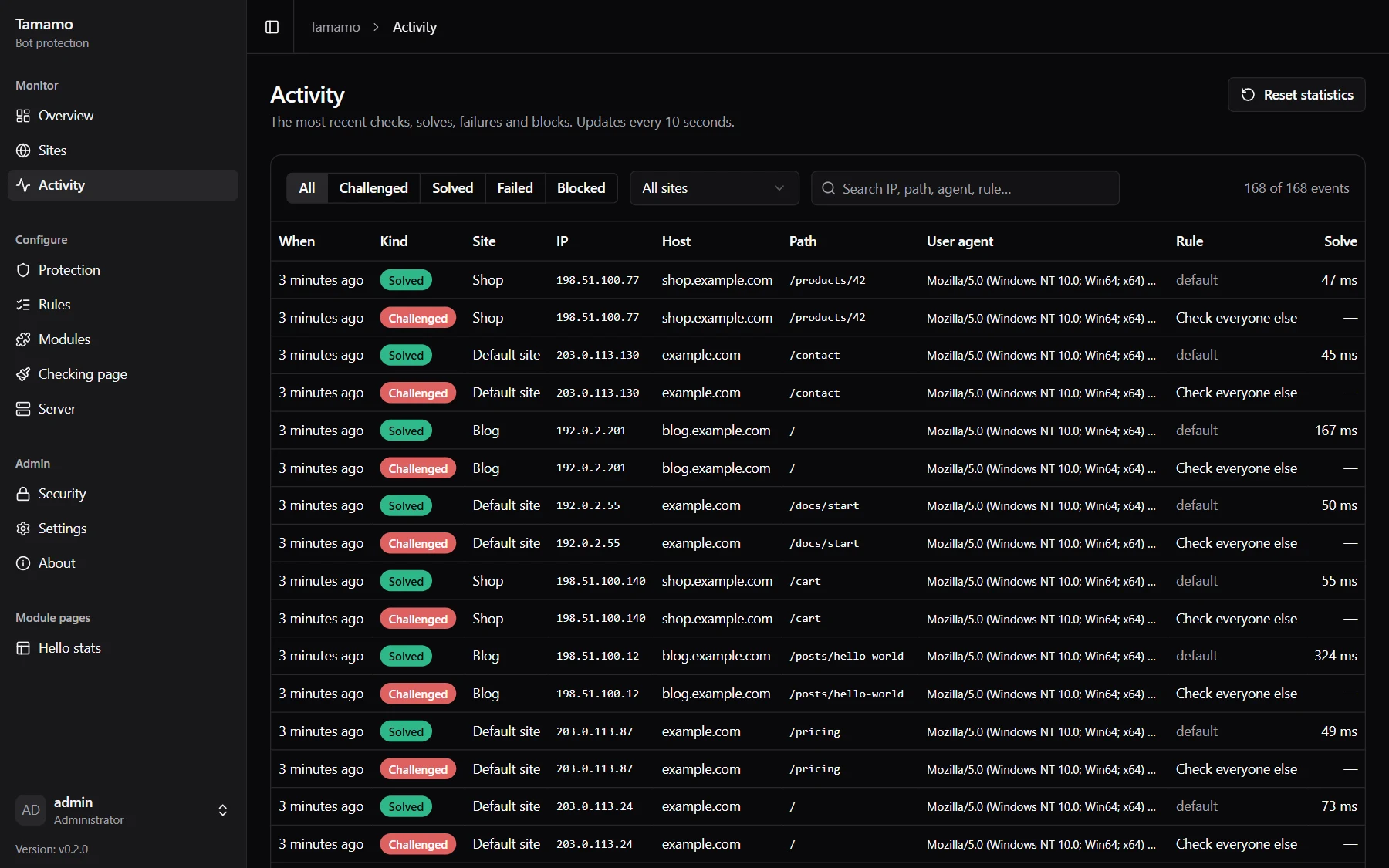
Activity is the log of recent checks, solves, failures, and blocks. Requests that are simply let through only appear in the Overview counts. Filter the list by kind, by site, or by search text. Solved events show the rule default. To see which rule challenged the visitor, look at the Challenged event for the same visitor.
Interface language
Under Admin > Settings > Interface, choose English, Русский, or Українська. The choice is stored in your browser. It doesn't change tamamo.yaml or the checking page. For the page visitors see, set the languages on the checking page.