
Modules
A module is a piece of Go code compiled into the Tamamo binary. A module can decide about requests, add to the checking page, edit proxied traffic, serve its own URLs and add its own screens to the web UI.
This page is about using modules: which ones your build has, how to switch them on and how they fit in with everything else. To write one, see Writing modules.
Rate limit, bypass header and webhooks
These used to be modules. They are regular settings now: see Protection and Webhooks. Old modules: entries for them are moved automatically.
Which modules do I have?
The standard Tamamo image contains no modules. Modules are compiled in, never installed at run time, so you get them by using a build that includes them. See Build Tamamo with modules.
To see what a build contains:
bash
docker compose exec tamamo tamamo -modulestext
hello 1.0.0  (Hello (example))
    Example module: blocks path prefixes, counts verdicts and adds a line to the checking page.
    - blocked_paths (list) Requests whose path starts with one of these are refused.
    - action (select, default block) What happens to a request for a blocked path.
On the standard image, the command prints This build contains no modules. The output above is from a custom build that includes the hello example module.
In the web UI, Configure > Modules shows the same list under In this build, each with an Add button next to it.
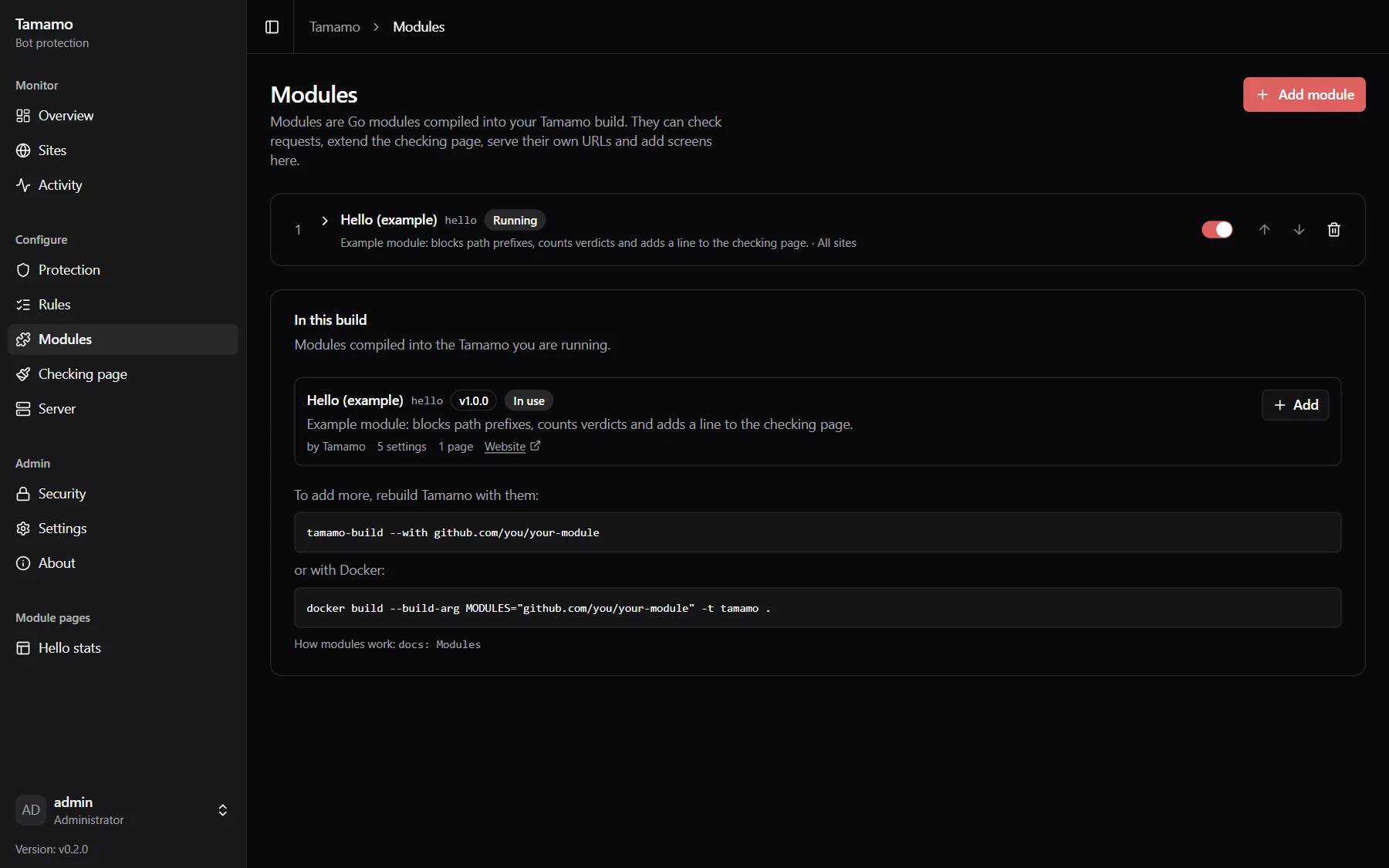
Switch a module on
In the web UI, press Add module, pick the module, and save. Its card shows the settings the module declares, as a form.
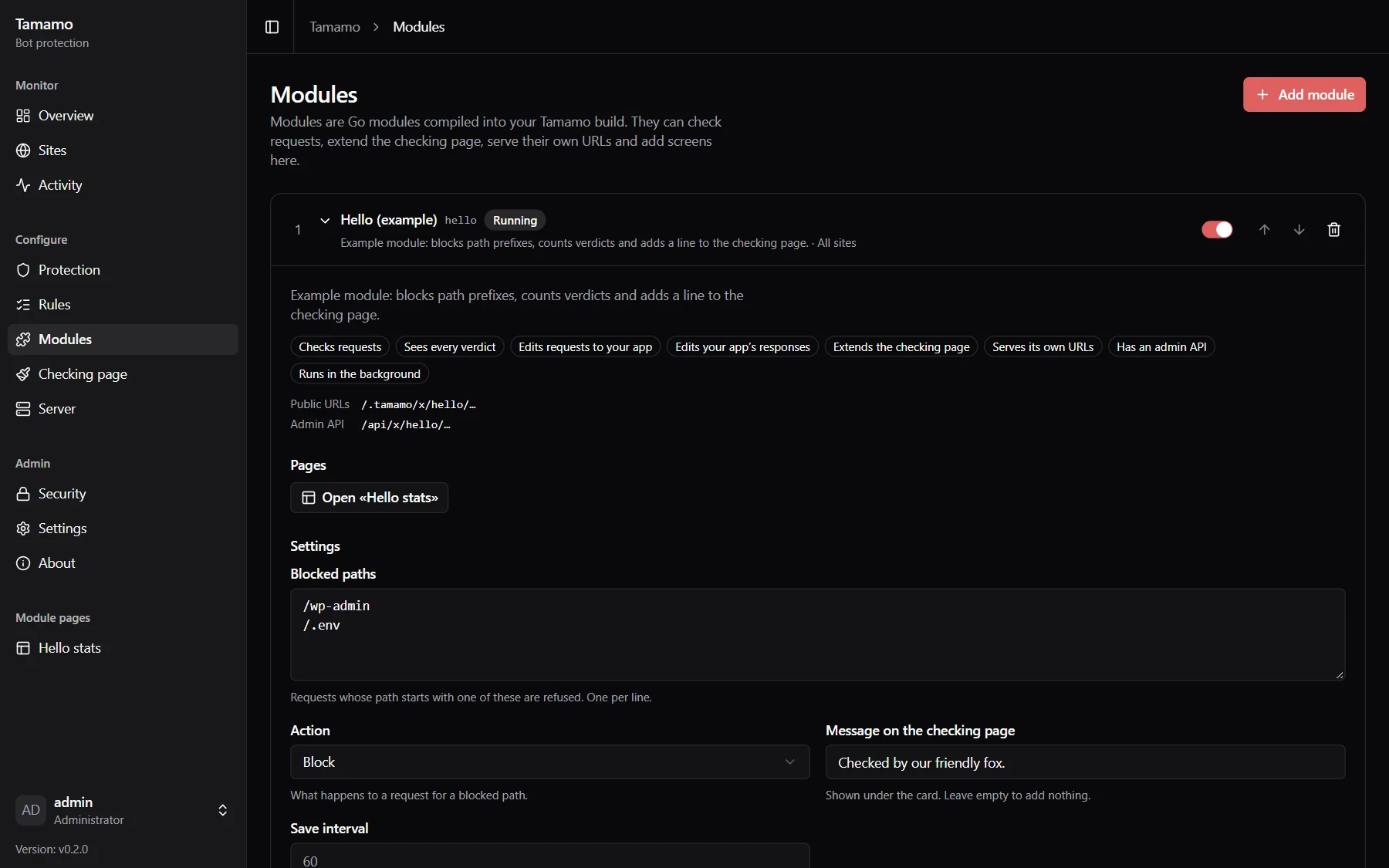
In tamamo.yaml, add an entry under modules::
yaml
modules:
  - name: hello
    enabled: true
    settings:
      blocked_paths: |
        /wp-admin
        /.env
      message: Checked by our friendly fox.
Both edit the same list. Saved changes apply within a few seconds, without a restart: Tamamo starts new modules, stops removed ones and restarts the ones whose entry changed.
| Key | Web UI | Default | What it does |
|---|---|---|---|
name | Name | the module's ID | Your name for the entry: a-z, 0-9 and dashes, up to 64 characters, unique. It appears in Activity (as module:<name>), in the logs, in the module's URLs and as the name of its data folder. |
module | Module | the name | The ID of the module to run, when it differs from the name. See the same module twice. |
enabled | The switch on the module's card | false | A switched-off entry is kept but not run. |
sites | Sites | empty (every site) | Site names or IDs, or default. The module runs only for these sites. |
on_error | If its check fails | continue | What happens to a request when the module's check returns an error or crashes: continue ignores the module, challenge shows the checking page, block refuses the request. |
settings | Settings | none | The module's own options. Values are always text, so quote numbers: limit: "10". |
Tamamo checks the settings when you save: a missing required setting, a number out of range or anything else the module refuses is reported, and the previous settings stay in use.
A switched-off entry may name a module your build doesn't have. A switched-on one may not: Tamamo refuses the file with no module with the ID ... is compiled into this build.
Where modules run
For each request, Tamamo asks, in this order:
- Bypass headers
- The rate limit
- Webhooks
- Modules, top to bottom
- Rules, top to bottom
- The default action
The first one that answers allow, challenge or block decides, and everything after it is skipped. Most modules have no opinion about most requests and pass them on. Order matters only among modules that decide about the same requests: put the one that should win higher. In the web UI, use the arrows on the cards.
Not every module decides about requests. The card of a running module lists what it does:
| Shown as | Meaning |
|---|---|
| Checks requests | Takes part in the order above. |
| Sees every verdict | Is told what Tamamo did with each request, for counting or logging. |
| Edits requests to your app / Edits your app's responses | Changes proxied traffic, for example adds a header. Not used behind nginx auth_request or forward auth, where Tamamo doesn't proxy. |
| Extends the checking page | Adds HTML, styles or scripts to Tamamo's pages. The "Protected by Tamamo" line can't be removed. |
| Serves its own URLs | Answers under /.tamamo/x/<name>/ on your site. |
| Has an admin API | Answers under /api/x/<name>/ on the admin API, for signed-in admins. |
| Runs in the background | Has work of its own, such as refreshing a list. |
Module pages
A module can bring its own screens. They appear in the web UI's sidebar under Module pages while the module is running, and as buttons on the module's card. The page is part of the module: what it shows and does is up to its author.
The same module twice
One module can run several times with different settings, for example per site. Give each entry its own name and point module at the module's ID:
yaml
modules:
  - name: hello-shop
    module: hello
    enabled: true
    sites: [Shop]
    settings: {blocked_paths: /admin, action: challenge}
  - name: hello-blog
    module: hello
    enabled: true
    sites: [Blog]
    settings: {blocked_paths: /wp-admin}
Each entry is a separate instance, with its own memory, URLs and data folder.
Files a module keeps
A module that stores anything gets a folder of its own: data/modules/<name>/, named after the entry. Back it up with the rest of the data folder. Deleting an entry does not delete its folder.
Trust
A module is code running inside Tamamo, with the same access as Tamamo itself: it sees every request, including cookies, and its pages in the web UI act with your admin session. Only build in modules whose source you trust, as you would with any dependency.
Upgrading from 0.1
Tamamo 0.1 had three kinds of module in the modules: list. When a newer Tamamo reads such a file, it moves the entries and rewrites the file:
| Old entry | Becomes |
|---|---|
type: go, module: ratelimit | protection.rate_limit |
type: go, module: bypass-header | An entry in protection.bypass_headers. A switched-off one is dropped. |
type: webhook | An entry in protection.webhooks |
type: page | Removed. Folders of HTML and CSS are no longer loaded. Use page.custom_css or a module that extends the page. |
type: go with your own module | A modules: entry in the new format. The module itself must be ported to the SDK. |
An old entry limited to some sites gives those sites protection settings of their own. Each move is logged once as a warning. Keep a copy of the old file before upgrading: see Back up and upgrade.
Common problems
- No module with the ID ... is compiled into this build. The entry is on, but your image doesn't have the module. Use the build that contains it, or switch the entry off.
- Module name ... may only use a-z, 0-9 and dashes. Names are part of URLs. Rename the entry.
- Two modules are called ... Names must be unique.
- There is no site called ... A
sitesentry doesn't match a site's name or ID. - Setting ... is required / must be ... The module refused its settings. The message names the setting.
- Failed to start. The module is loaded but its background work could not start. The card shows the module's error, and so does the log. To read the log, run
docker compose logs --tail 50 tamamo.
Related
- Writing modules: the SDK, for module authors.
- Build Tamamo with modules: get a binary or image that contains them.
- Protection: bypass headers, rate limit and webhooks.